# Connect with ChatGPT
Source: https://gokarla.io/docs/platform/ai/mcp-chatgpt
# Connect with ChatGPT
Add Karla to [ChatGPT](https://chatgpt.com) as an **app** (MCP server) and query
your shop's data in natural language. Custom MCP servers are added through
ChatGPT's **developer mode**.
You need a Karla account that has been invited to at least one shop. If you
can't sign in, ask an admin on your shop to invite you from the portal first.
See the [MCP overview](/docs/platform/ai/mcp) for how access works.
## 1. Enable developer mode
In ChatGPT, go to **Settings → Apps** and turn on **Developer mode**. This is
what lets you add your own MCP servers as apps.
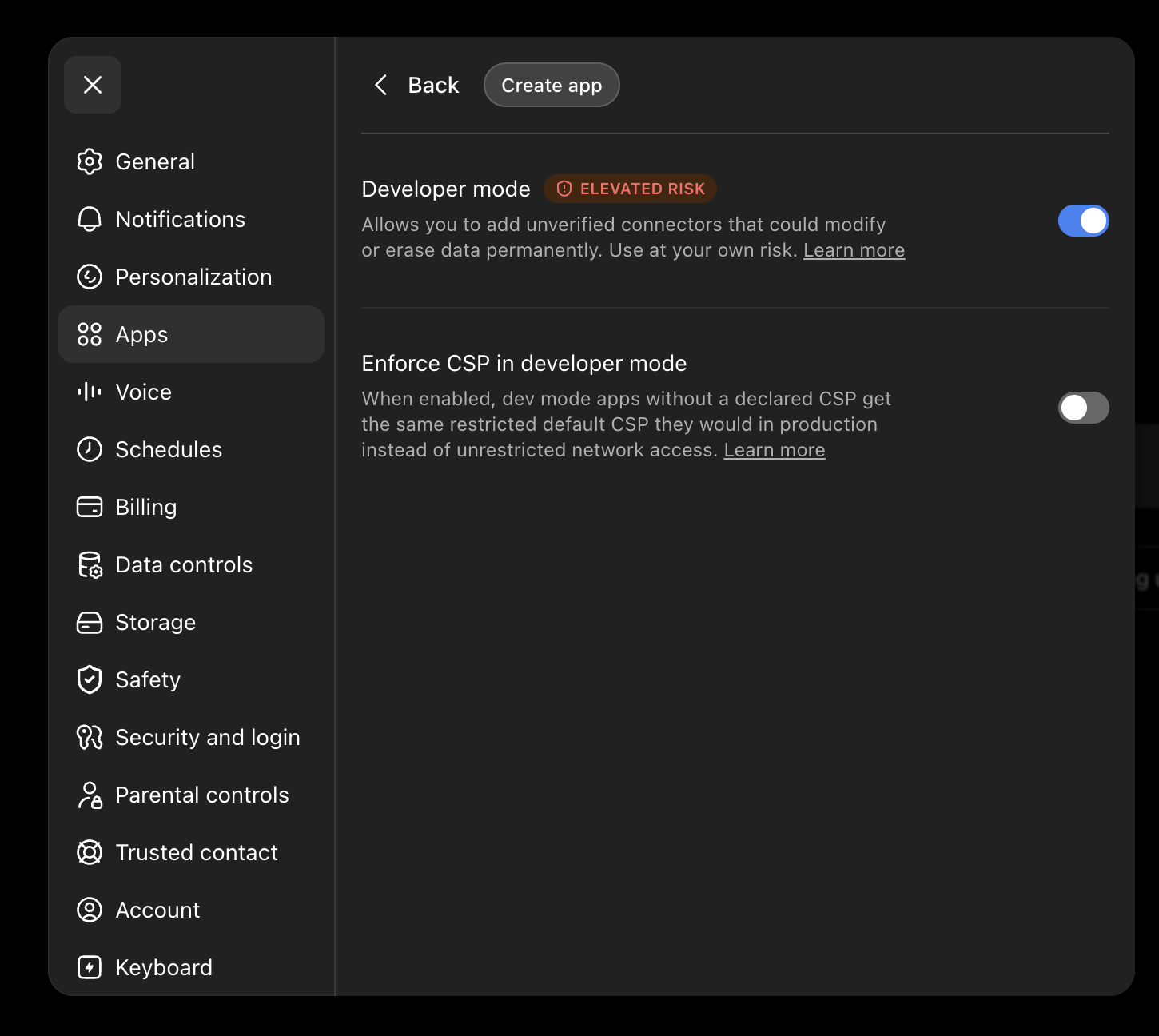
Developer mode lets you connect unverified MCP servers. Only add servers you
trust — `https://mcp.gokarla.io/mcp` is Karla's official, read-only server.
## 2. Create the Karla app
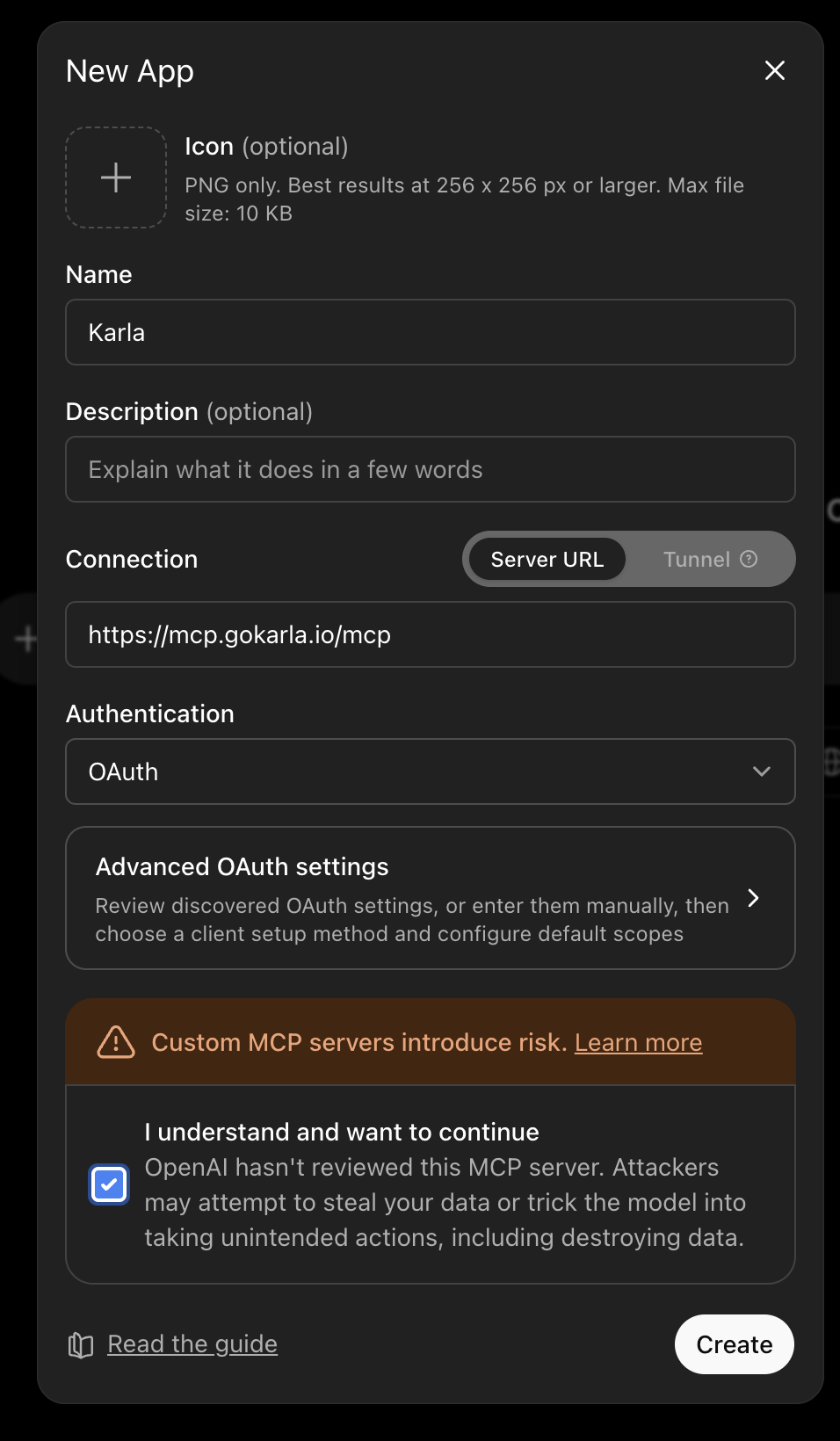
Create a new app and fill in the details:
- **Name** — `Karla`
- **Connection** — choose **Server URL** and paste:
```
https://mcp.gokarla.io/mcp
```
- **Authentication** — select **OAuth**.
Acknowledge the risk notice and click **Create**.
## 3. Sign in with Karla
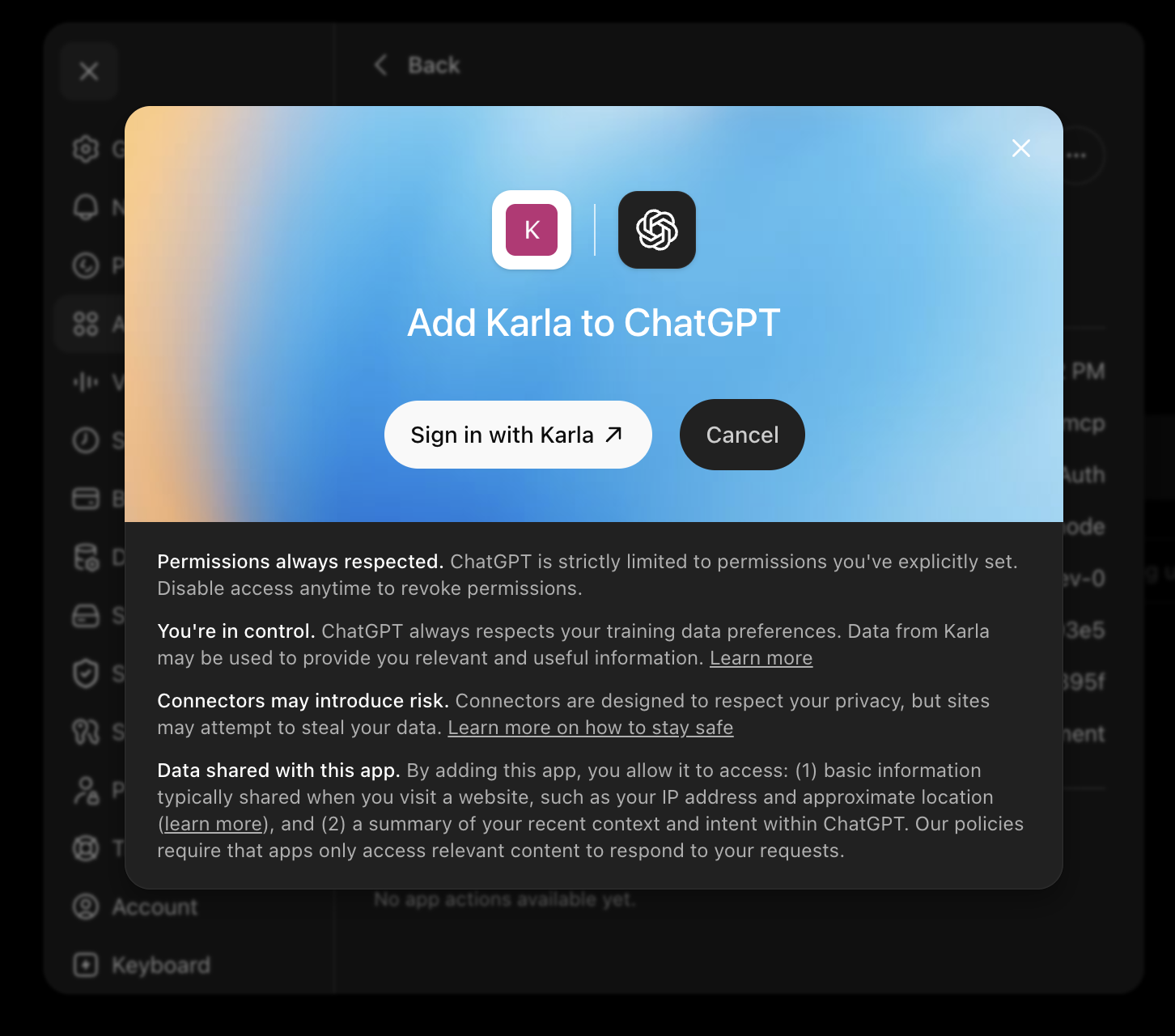
ChatGPT opens the Karla authorization screen. Click **Sign in with Karla**, sign
in with Google or Microsoft, and approve the connection. The consent screen
tells you exactly what Karla will share — read-only business data for the shops
you're authorized for, with customer contact details masked.
## 4. Start querying
You're ready. Start by discovering your access, then ask away:
> "What shops can I access?"
>
> "Show me orders from the last 7 days."
>
> "Which shipments are still in transit?"
See the [MCP overview](/docs/platform/ai/mcp#available-tools) for the full list
of tools and more example prompts.
The same server URL — `https://mcp.gokarla.io/mcp` — works with any
MCP-capable client. Add it as a remote (streamable-HTTP) MCP server in that
client's configuration and complete the Karla sign-in when prompted.
## Disconnecting
To revoke access, remove the Karla app from **Settings → Apps**. You can add it
again any time by signing in with Karla.