# Shopify
Source: https://gokarla.io/docs/guides/shops/shopify
# Shopify
:::info
The Shopify integration allows Karla to retrieve order updates from your shop and display them on your customers' tracking pages (e.g., purchased products, shipping address, etc.) as well as retrieve all tracking numbers to provide corresponding tracking updates.
:::
## Install the Shopify App
Install our [Shopify App](https://apps.shopify.com/karla-1) and follow the onboarding steps.
### Tracking page links
By default, the Karla app provisions a tracking page on your Shopify domain (including all market domains), that you can use right away:
:::info Shopify Markets
If your markets use subfolder paths (e.g., `/de`, `/de-at`), include the market prefix: `https://[yourdomain]/de-at/apps/karla/track`. For subdomain or separate domain markets, simply use that domain as `[yourdomain]`.
:::
#### Order Tracking
- Logged-in customers see their recent orders. Guests see the order finder.
- `https://[yourdomain]/apps/karla/track`
- Direct link for logged-in customers:
- `https://[yourdomain]/apps/karla/track?orderNumber=00001`
- Direct link for guests (zip code required):
- `https://[yourdomain]/apps/karla/track?orderNumber=00001&zipCode=10119`
#### Issue Resolution
- Logged-in customers see their recent orders. Guests see the order finder.
- `https://[yourdomain]/apps/karla/resolve`
- Direct link for logged-in customers:
- `https://[yourdomain]/apps/karla/resolve?orderNumber=00001`
- Direct link for guests (zip code required):
- `https://[yourdomain]/apps/karla/resolve?orderNumber=00001&zipCode=10119`
:::info Deeplinks
`00001` (order number) and `10119` (zip code) are example
values. Replace them with your customer's actual order number and zip
code to create a deep link to any specific order. Zip code is only required if the customer is not logged in.
:::
## Advanced: Setting up your own Tracking Page template
You can add the Karla tracking widget to any Shopify template of your choice.
:::danger Do NOT add the tracking widget to your default page template
Adding the widget to your default page template will override **all** pages that use that template (info pages, help center, guides, etc.). Always use a dedicated template.
:::
### Step 1: Add the tracking widget to a theme (pick one method)
Our app includes a ready-made **Tracking Page** block that you can add via the theme editor:
1. Go to **Online Store → Themes → Customize**
2. In the top navigation, select **Pages** → choose your tracking page
3. Click **Add section** and look for the **Tracking Page** block (under "Apps")
4. Configure language and starting view in the block settings
5. Remove the default content section if you want the tracking widget to be the only content
6. Click **Save**
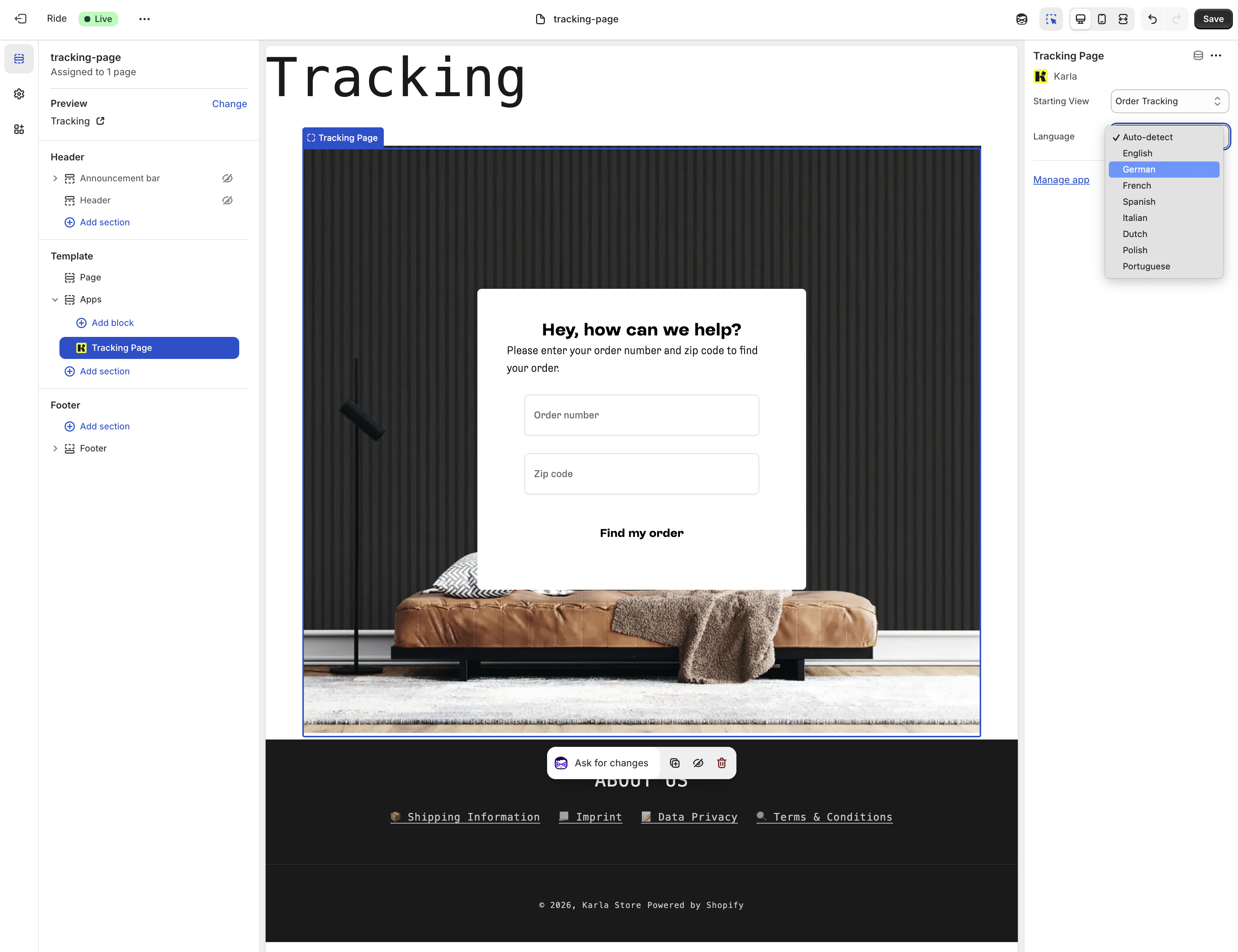
This approach automatically inherits your theme's fonts and colors, supports logged-in customers (they will see a very simple list of their latest orders to pick if they are logged in and no orderNumber query parameter was given), and requires no code.
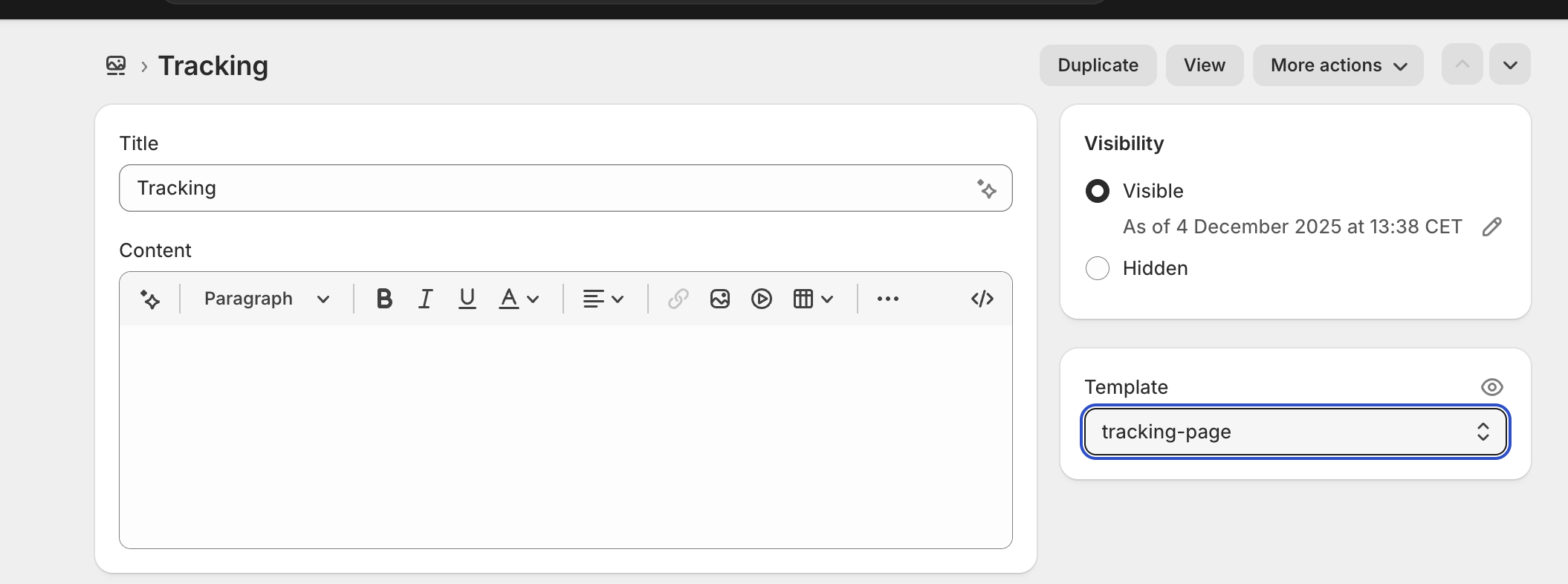
### Step 2: Create a page based on the template
1. In your Shopify admin, go to **Online Store → Pages**
2. Click **Add page**
3. Set the title (e.g., "Track your order")
4. Select the template
5. Publish the page
## Advanced: Campaign attribution
Our Shopify app also allows you to track which orders come from your Karla campaigns. For a complete overview of attribution methods across all platforms, see the [Campaign Attribution Overview](/docs/guides/tracking-page/attribution).
### Method 1: Shopify app
All call-to-action links in the portal campaigns will automatically have query parameters that start with `karla_`, identifying the source, medium, and specific campaign. In addition, a `ref=karla` parameter is added by default in all interactions.
When customers click on those links, our Shopify app will detect the interaction at checkout time, and send the attribution information if the customer places the order.
This method is simple but has limitations inherent to how Shopify handles cart sessions.
### Method 2: Discount codes
Simply add a discount code to your campaign in the [Karla portal](https://portal.gokarla.io). Orders using this discount will be automatically attributed to the campaign.
**Verifying orders in Shopify:**
Navigate to **Orders** → Filter by **Discount code** to see all orders that used your campaign discount.
For complete details on discount code attribution, best practices, and limitations, see [Discount Code Attribution](/docs/guides/tracking-page/attribution#method-2-discount-code-attribution).
## Customer Segments via Order Tags
Karla automatically reads tags from your Shopify orders and turns each one into a segment you can target in [campaigns](/docs/guides/portal/campaigns), triggers, and A/B tests. No setup required on the Karla side — just tag your orders in Shopify and Karla picks them up.
### How it works
- Each Shopify order tag becomes a segment in Karla with the prefix `Shopify.tag.` followed by the exact tag name.
- Karla re-reads tags **every time an order is created or updated** in Shopify, so tags added later are picked up automatically.
- Multiple tags on one order produce multiple segments.
**Examples:**
| Order tag | Karla segment |
| ---------------- | ---------------------------- |
| `vip` | `Shopify.tag.vip` |
| `bought-starter` | `Shopify.tag.bought-starter` |
| `market-de` | `Shopify.tag.market-de` |
### Driving segments with Shopify Flow
Order tags become powerful when combined with [Shopify Flow](https://help.shopify.com/en/manual/shopify-flow). Flow can stamp an order with a tag based on anything Shopify knows — customer attributes, line items, totals, location, Shopify Customer Segments, even data from third-party apps. Karla then turns those tags into segments.
**Example — VIP customers see a VIP banner:**
In Shopify Admin → **Apps → Shopify Flow → Create workflow**:
1. **Trigger:** `Order created`
2. **Condition:** customer has tag `vip`
3. **Action:** `Add order tags` → `vip`
When a VIP customer places an order, Shopify stamps it with `vip`, Karla receives the webhook, and a campaign targeting segment `Shopify.tag.vip` runs on that customer's tracking page.
**Example — cross-sell on a specific product:**
1. **Trigger:** `Order created`
2. **Condition:** any line item matches the "Starter Kit" product (or SKU)
3. **Action:** `Add order tags` → `bought-starter`
Karla emits segment `Shopify.tag.bought-starter`; a product campaign recommending related items targets that segment.
### Common Flow patterns
| Goal | Flow condition | Order tag | Karla segment |
| ----------------------------------- | ---------------------------------------------------------------------------------------------------------- | ---------------- | ---------------------------- |
| VIP banner | customer has tag `vip` | `vip` | `Shopify.tag.vip` |
| First-time buyer welcome | customer's number of orders equals 1 | `first-time` | `Shopify.tag.first-time` |
| Loyalty offer | customer's number of orders is 3 or more | `loyal` | `Shopify.tag.loyal` |
| Free-shipping VIP | order total ≥ 100 | `high-value` | `Shopify.tag.high-value` |
| German-market campaign | shipping country is DE | `market-de` | `Shopify.tag.market-de` |
| Cross-sell on specific product | any line item matches a target product or SKU | `bought-starter` | `Shopify.tag.bought-starter` |
| Shopify Customer Segment membership | trigger _Customer joined segment_ → tag the customer → on order, mirror the customer tag into an order tag | `seg-vip` | `Shopify.tag.seg-vip` |
### Things to know
- **Tags are case-sensitive** — `VIP` and `vip` produce different segments. Pick one convention and stick to it.
- **Tags cannot contain commas** — Shopify uses commas as the separator. Use hyphens or underscores instead (e.g., `wholesale-b2b`).
- **Spaces inside a tag are preserved** — `"first time buyer"` becomes `Shopify.tag.first time buyer`. Hyphens read more cleanly in segment lists.
- **Empty tags are ignored**, and surrounding whitespace is trimmed.
- **Once an order is fulfilled, changing its tags won't switch the campaign that shipment shows.** Campaign assignment is locked at fulfillment. See [How segmentation works](/docs/guides/portal/campaigns#how-segmentation-works).
:::tip
Tag the **order**, not the customer. Order tags are reliable across all Shopify installations; customer tags can be restricted by Shopify on newer app installs. Shopify Flow lets you read any customer attribute and write it as an order tag — that's the pattern that always works.
:::
📚 **Shopify docs:**
- [Tag customers and orders](https://help.shopify.com/en/manual/customers/manage-customers/tag-customers)
- [Shopify Flow overview](https://help.shopify.com/en/manual/shopify-flow)
- [Add order tags action](https://help.shopify.com/en/manual/shopify-flow/reference/actions/add-order-tags)
## Advanced: Custom Properties
Add custom properties to your Shopify orders to enhance your customers' delivery experience with Karla.
### Understanding Scopes
Shopify supports two types of custom data, and we always prefix them with `_karla_`:
- **Order attributes**:
- Apply to the entire order
- Use Shopify `attributes`
- **Line item properties**:
- Apply to individual products
- Use Shopify `properties`
### Order Attributes
These `attributes` will appear in the `Additional details` section of your order admin panel.
#### Marketplace Order Number
Use `_karla_marketplace_order_number` to track orders from external marketplaces (Amazon, eBay, etc.):
- **Format**: Any string (alphanumeric, dashes, and underscores supported)
- **Scope**: Entire order
- **Use case**: Reference external marketplace order IDs for cross-platform tracking
#### Order attribution variables
The Karla Shopify app reads these cart attributes when an order is placed and
forwards them to the order's `order_analytics` payload. You can set them
yourself (via cart AJAX or theme liquid) to own the full attribution logic.
See [Campaign attribution](/docs/guides/tracking-page/attribution) for the
complete flow.
These variables are:
- `_karla_campaign`: Campaign identifier
- `_karla_captured_at`: Timestamp when the attribution was first captured
- `_karla_landing_path`: Path on your shop where the customer landed
- `_karla_landing_url`: Full URL where the customer landed
- `_karla_medium`: Marketing medium (e.g., email, banner, push notification)
- `_karla_referrer`: HTTP referrer URL
- `_karla_source`: Traffic source identifier (e.g., trackpages, karla-lounge)
### Line Item Properties
Line item properties apply to individual products and are added using the `properties` parameter.
#### Estimated Ship Date Range
Specify when a product is expected to ship using a date range:
- `_karla_estimated_ship_date_start` — earliest expected ship date (**required**)
- `_karla_estimated_ship_date_end` — latest expected ship date (optional)
Providing both properties creates a shipping window (e.g., "Ships between Oct 23 and Oct 30"). Providing only `_start` displays a single estimated date. `_end` without `_start` is ignored.
- **Date formats accepted:** any [ISO 8601](https://en.wikipedia.org/wiki/ISO_8601) date string (preferred), or common date strings like `23.10.2025` or `10/23/2025`
- **Scope**: Individual line item
### Complete Implementation Examples
#### Example 1: Adding Line Item Property (Product Page)
On your product page, add line item properties to the "Add to Cart" form:
```liquid
```
#### Example 2: Adding Order Attribute (Cart Page)
There are two methods depending on your theme type:
##### Method A: Traditional Form (Older Themes)
If your theme uses traditional cart forms (typically older themes or custom implementations):
```liquid
```
##### Method B: AJAX Cart (Modern Themes)
Most modern Shopify themes (Dawn, Refresh, etc.) use AJAX for cart operations. For these themes, add this JavaScript to your theme file (e.g., `theme.liquid`), before the closing `
` tag:
```liquid
{% if customer.metafields.custom.marketplace_order_id %}